You’re staring at your Shopify store, and something’s off. The hero image feels flat, the button color clashes, and that headline lands with a thud.
A few years ago, you’d be stuck — forced to hire a developer or learn Liquid. In 2026, that’s dead. You can fix it yourself in under five minutes. This is exactly how to edit Shopify theme without coding — no Liquid, no waiting, no stress.
TL;DR: Shopify’s built-in theme editor handles basic layout tweaks and color swaps. For direct, visual edits to text, images, and buttons right on the page, use a no-code app like Easy Edits (I built it). You can edit your store without touching a single line of code in 2026.

Use Shopify’s Built-In Theme Editor First
Start here. It’s free, it’s native, and it handles the basics.
Go to Online Store > Themes > Customize. You get drag-and-drop sections, pre-built blocks for products, collections, and text, plus global color and font settings.
What you can do without any app:
- Swap background colors and accent colors
- Rearrange section order (hero, featured collection, testimonials)
- Add or remove pre-built blocks
- Change button text and link destinations
It’s powerful for structural changes. But it falls short when you need to edit specific text inside a section or swap a single image without rebuilding the block. That’s where the click-to-edit gap lives.
Edit Text and Images Directly on the Page
Here’s the real shortcut for shopify theme customization without code: editing directly on the live preview.
With apps like Easy Edits (I built this specifically to solve this problem), you click any text or image right on your storefront. A toolbar pops up. Change the headline. Replace the photo. Tweak the call-to-action.
No backend. No theme editor tabs. No code.
This is the fastest way to edit shopify store without developer involvement. You see exactly what customers will see, and you change it in context. The risk of breaking your layout drops to zero because you’re editing content, not code.
| Built-In Editor | Visual Editor (Easy Edits) |
|---|---|
| Change section structure | Click any text to rewrite it |
| Swap block order | Replace images in-place |
| Global color changes | Edit a single button’s color |
| Requires template editing for deep tweaks | Works on any page, any theme |
Change Colors and Layout Without Touching CSS
Customize shopify theme yourself starts with color. Bad color choices kill conversion rates — and you don’t need a designer to fix them.
In 2026, Shopify’s theme editor lets you adjust palette-wide colors under Theme settings > Colors. You can pick from presets or input hex codes.
But what if you want one button red while keeping the rest blue? The native editor can’t do that. A visual editor lets you select that specific button and change its color, font size, or border radius with one click. Same for layout — you can adjust spacing, alignment, and padding visually without diving into CSS.
Rules of thumb for DIY store design in 2026:
- Limit your palette to 3 colors max
- Keep buttons high-contrast (test with a color checker)
- Never center long paragraphs — left-align for readability
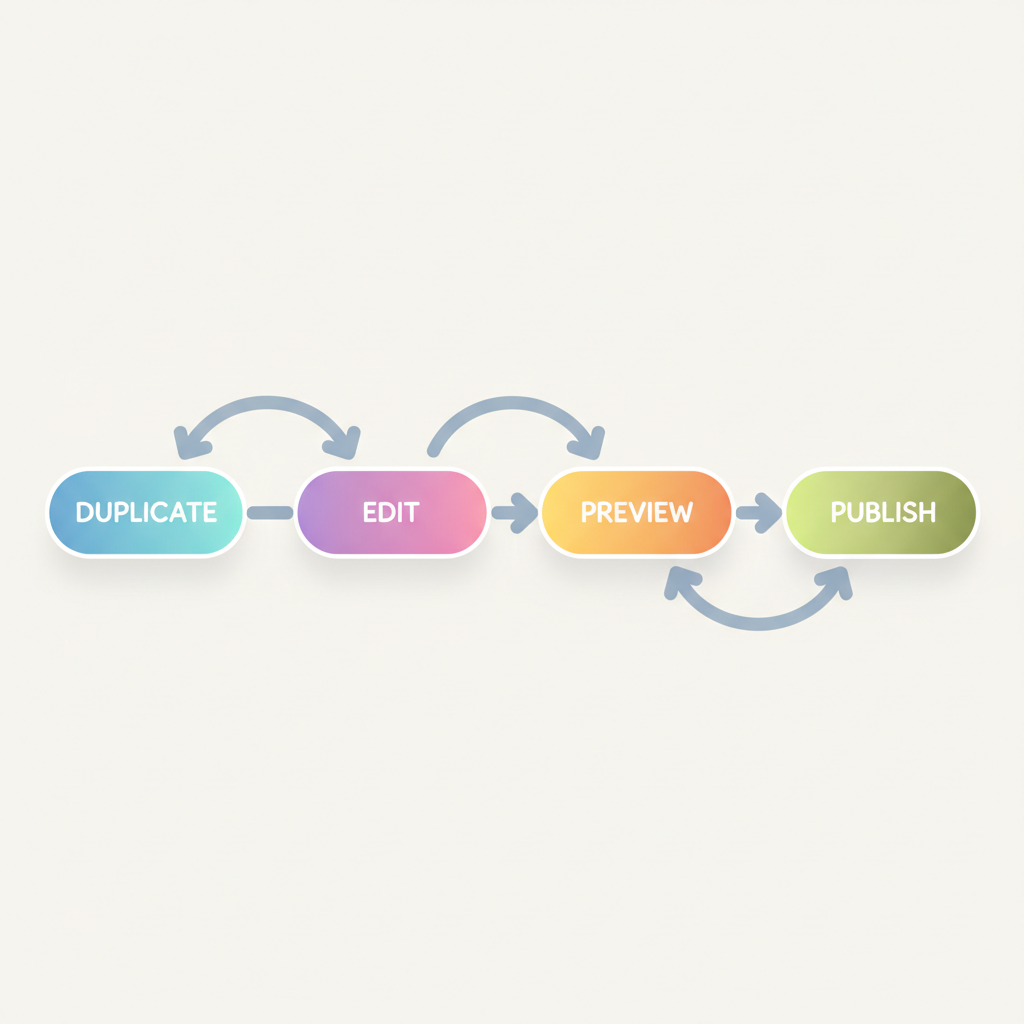
Preview and Publish Safely: The Four-Step Workflow
Before you hit publish, follow this shopify theme editor guide workflow. It keeps your live store safe.
1. Duplicate your theme. Go to Online Store > Themes > Actions > Duplicate. Work on the copy.
2. Make your edits. Use the built-in editor for structure. Use a visual editor for content and fine-tuning.
3. Preview on mobile and desktop. Shopify’s preview toggle shows both views. Check every page you touched.
4. Publish the duplicate. Switch themes in one click. If something’s broken, the original is still live.
That’s it. No developer handoff. No late-night coding. Just visual, drag-and-drop control.
Your Move: Pick One Page and Fix One Thing
Go open your Shopify admin right now. Pick the most awkward page on your store. Change one headline, swap one image, or shift one button color. Do it without opening a code editor. You’ll see how fast no code shopify customization really is.
If you want to edit text, images, or colors directly on the page, give Easy Edits a try — I built it exactly for this moment.
Michael Thomson
Software developer building Shopify apps, AI tools, and ecommerce systems.
Get in touch